While subtitles rank among the most useful accessibility features, preferences vary among players. Here's how to toggle subtitles in *Avowed* based on your viewing preference.
Recommended Videos
Managing Subtitles in Avowed
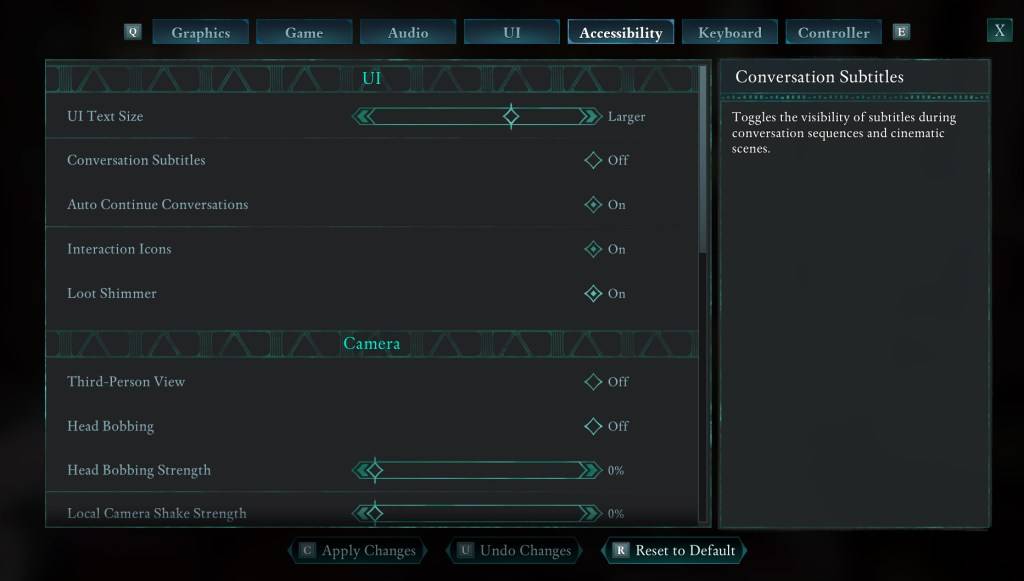
During *Avowed's* initial setup, you'll encounter subtitle configuration options. If you need to adjust these later, the game offers two straightforward methods.
Navigate to the "Settings" menu and select either the "UI" or "Accessibility" tabs. Locate the "Conversation Subtitles" and "Chatter Subtitles" options to customize them. While the "Accessibility" tab provides the most intuitive layout for these adjustments, both locations offer identical functionality.
Understanding Subtitle Preferences
Though many players (including myself) rely on subtitles, some find them distracting during gameplay. The choice ultimately comes down to personal preference - enable them if they enhance your experience, or disable them if they don't suit your playstyle.
Avowed's Accessibility Features Overview
While not the most extensive implementation available, *Avowed* covers essential accessibility needs. The subtitle system allows for text size adjustments, background opacity modification, and minimum display duration settings.
Beyond subtitles, the game includes options to minimize motion effects that might cause discomfort: camera shake reduction, head bob adjustments, and similar visual modifications. Additional settings include adjustable aim assistance, toggle options for crouch and sprint modes, and other features designed to make the game more inclusive.
With these settings, you can fully customize your subtitle experience in *Avowed*.
*Avowed is currently available for play.