This guide details how to play Sega CD games on your Steam Deck using EmuDeck. We'll cover everything from initial setup to optimizing performance.
Pre-Installation Steps & Recommendations
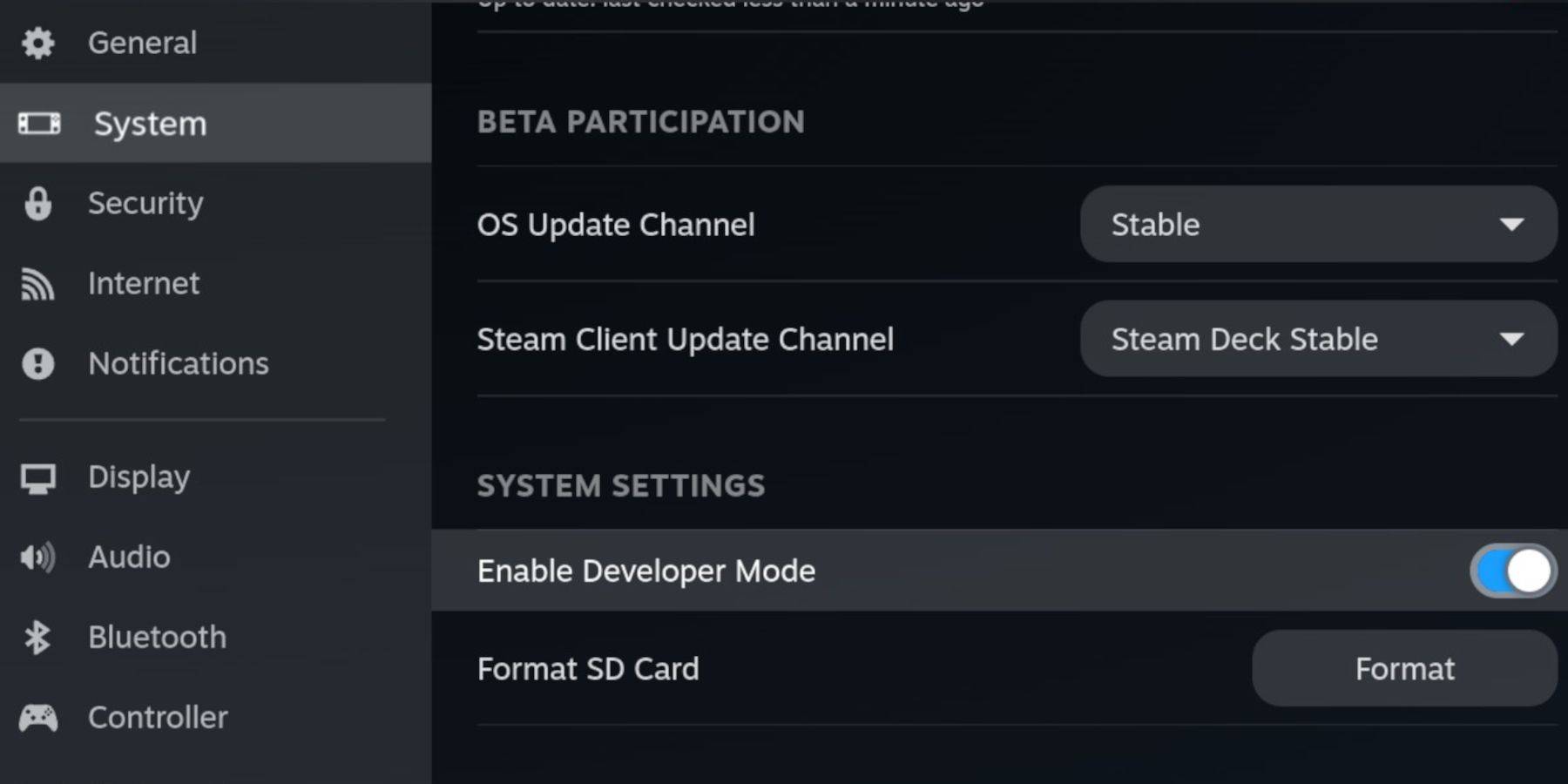 Before starting, enable Developer Mode and CEF Remote Debugging on your Steam Deck to ensure compatibility with EmuDeck updates.
Enabling Developer Mode:
- Access the Steam Menu (Steam button).
- Go to System > Developer Mode and enable it.
- In the Developer menu, enable CEF Remote Debugging.
- Restart your Steam Deck in Desktop Mode.
Essential Requirements:
- A fast A2 microSD card for EmuDeck and games. Format this card on your Steam Deck.
- Legally obtained Sega CD ROMs and BIOS files.
- A keyboard and mouse (optional, but recommended for easier file transfers).
Formatting your SD Card:
- Insert the microSD card.
- Access the Steam Menu > Storage and format the SD card.
Downloading and Installing EmuDeck
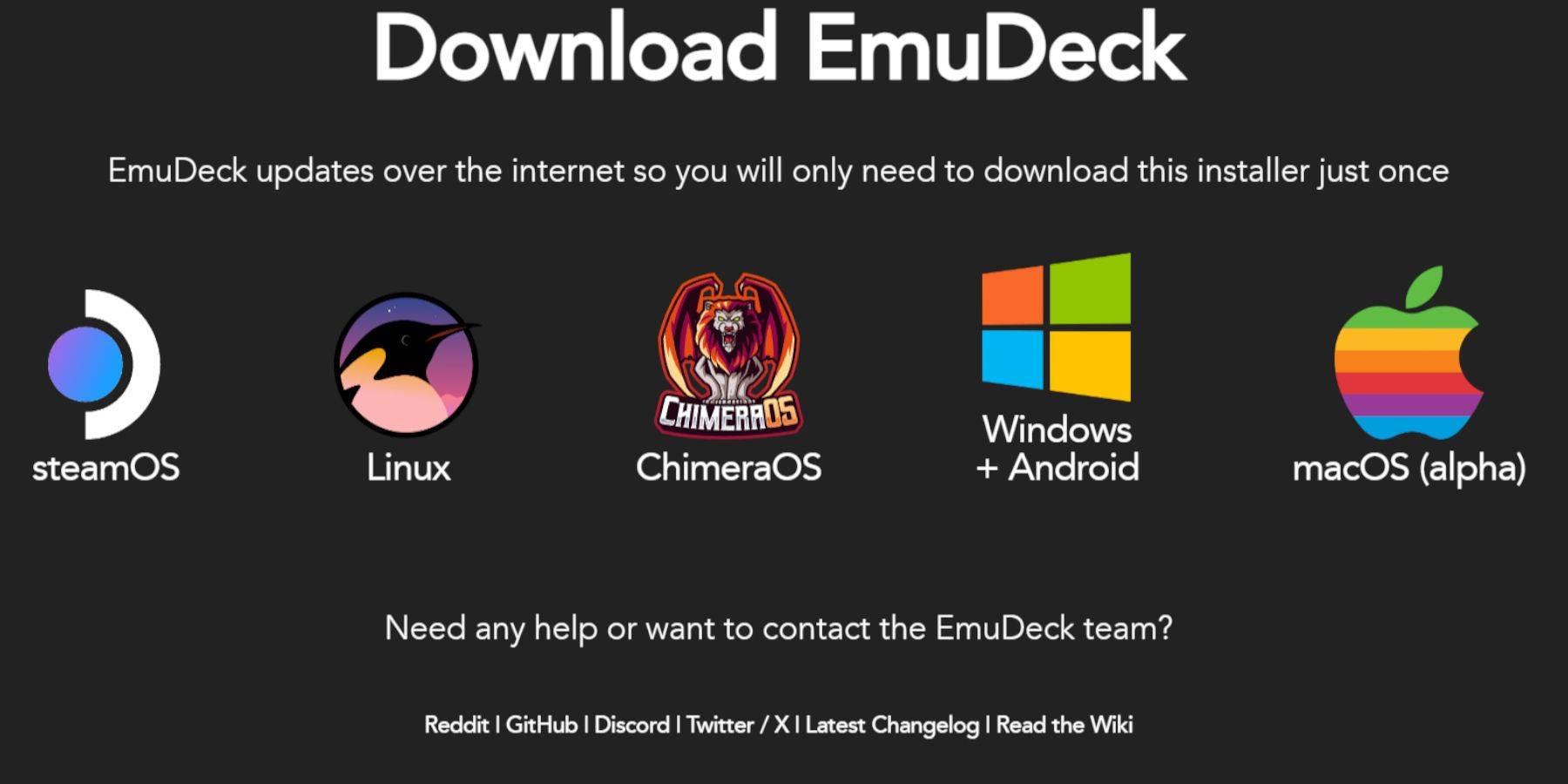
- Switch to Desktop Mode (Steam button > Power > Desktop Mode).
- Download a web browser from the Discovery Store.
- Download EmuDeck from its official website, choosing the SteamOS version.
- Run the installer, select "Custom," and choose your SD card as the installation location.
- Select RetroArch, MelonDS, Steam ROM Manager, and Emulation Station (or install all emulators).
- Complete the installation.
Transferring Sega CD Files
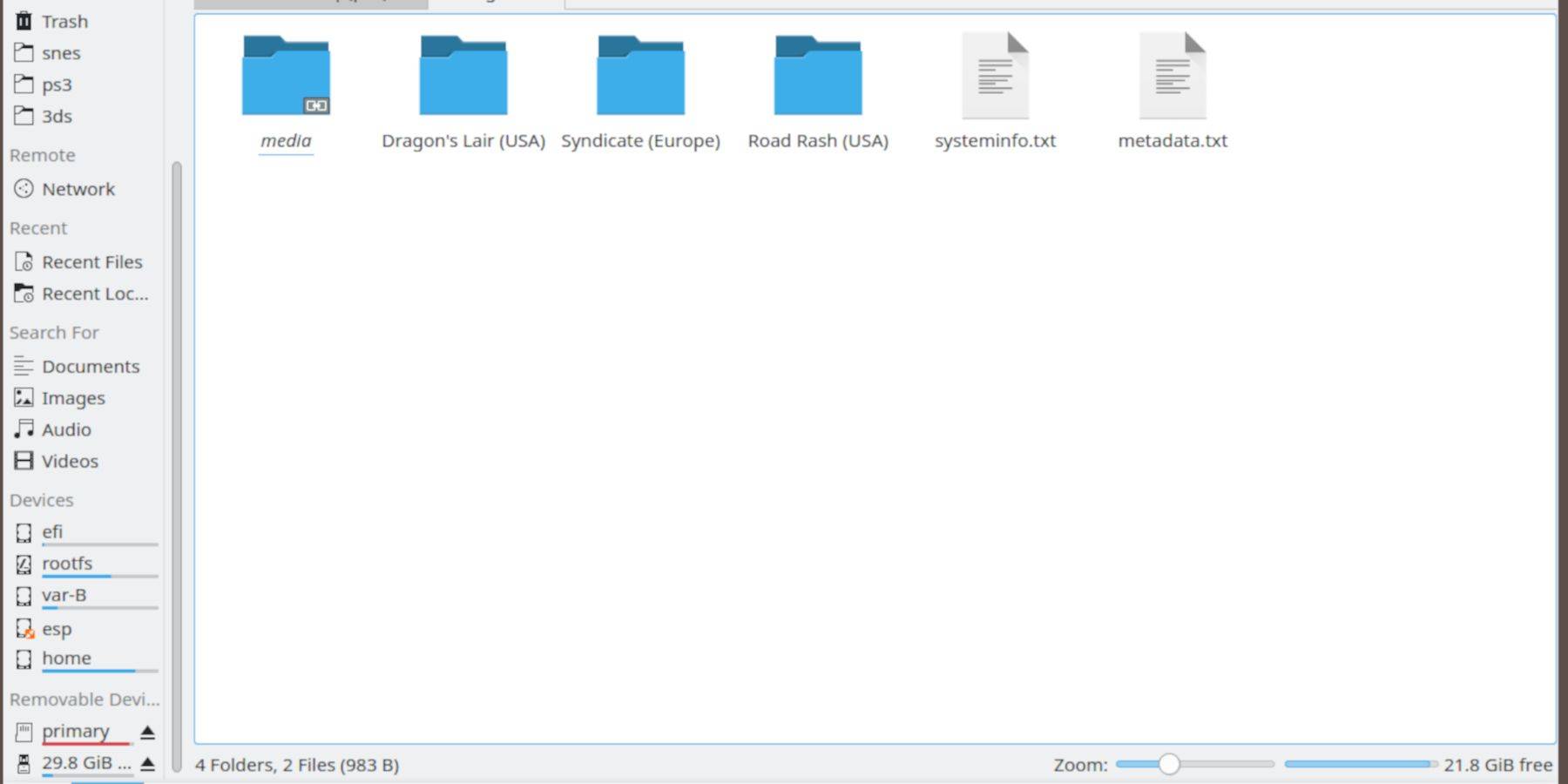
BIOS Files:
- Open the Dolphin File Browser (in Desktop Mode).
- Navigate to your SD card ("Primary").
- Go to
Emulation>BIOSand transfer your BIOS files.
ROMs:
- Navigate to your SD card ("Primary") >
Emulation>ROMS. - Go to the
segaCDormegaCDfolder and transfer your ROMs.
Adding ROMs with Steam ROM Manager
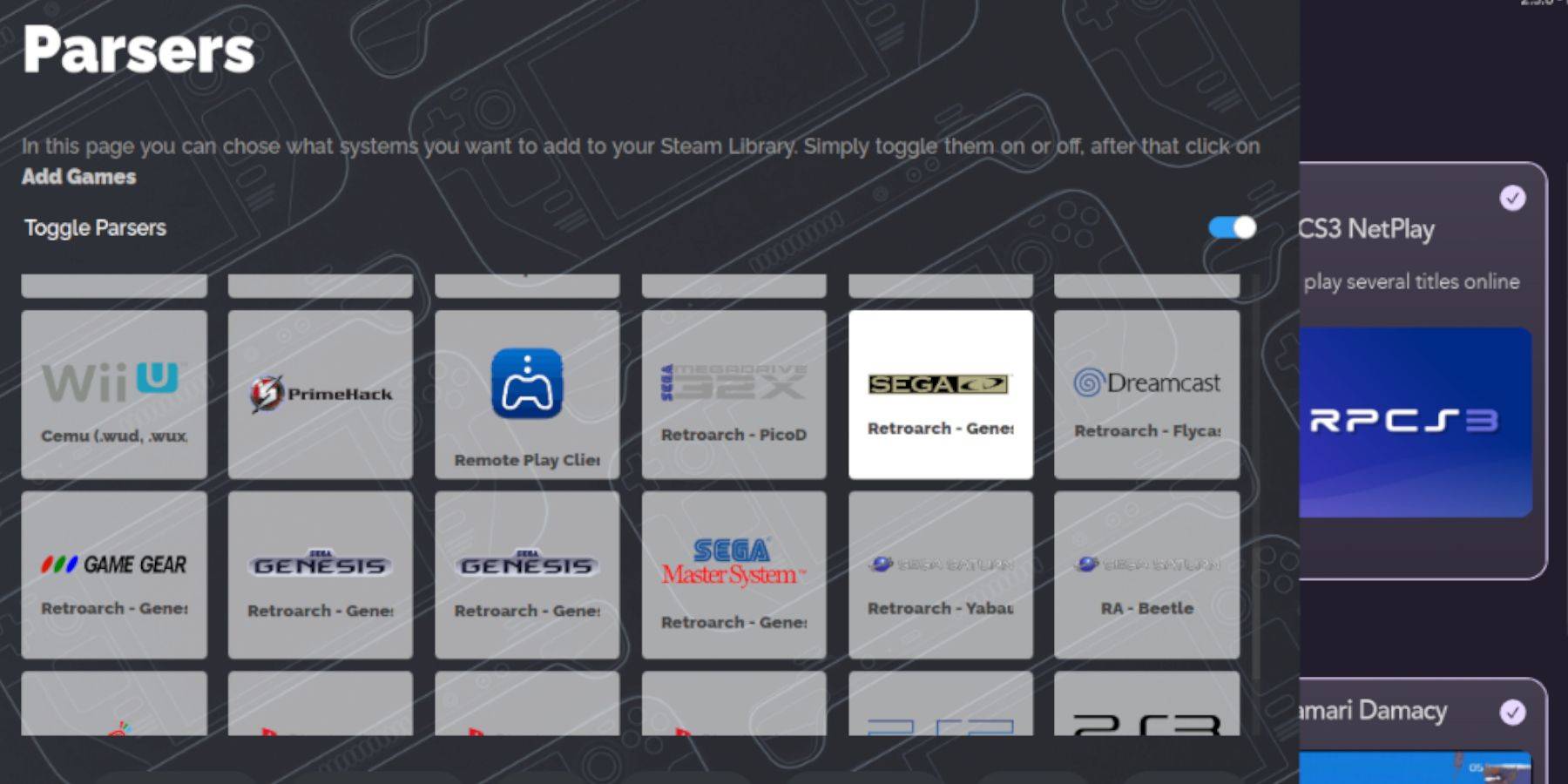
- Open EmuDeck and launch Steam ROM Manager.
- Click "Next," then click on the two Nintendo DS windows (this is necessary even for Sega CD).
- Click "Add Games" and then "Parse."
- Steam ROM Manager will organize your games and covers.
Fixing Missing Covers
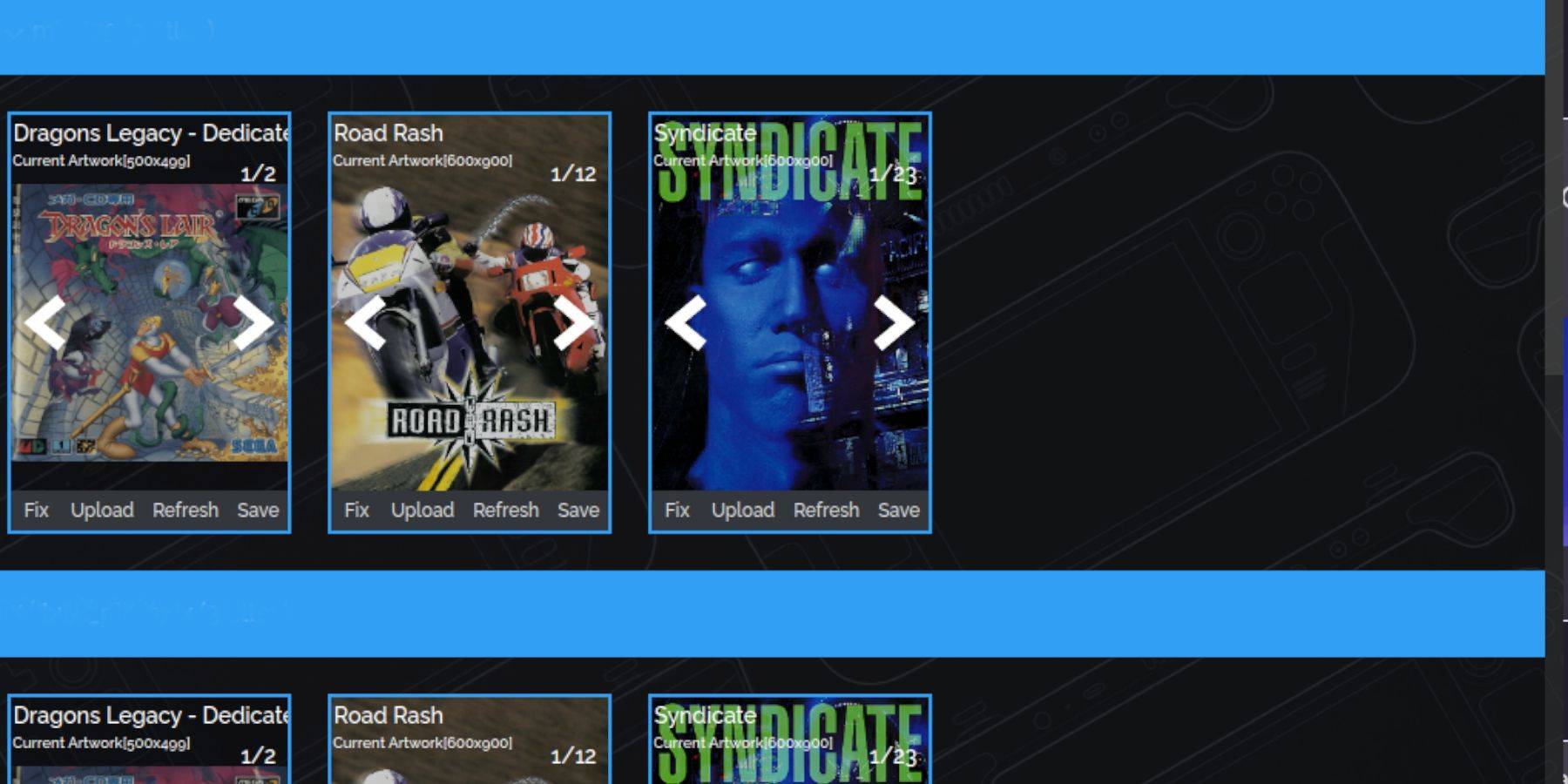
If covers are missing:
- Click "Fix."
- Search for the game title.
- Select a cover and click "Save and Close."
To manually add covers:
- Click "Upload."
- Select your downloaded cover image.
- Click "Save and Close."
Playing Your Sega CD Games
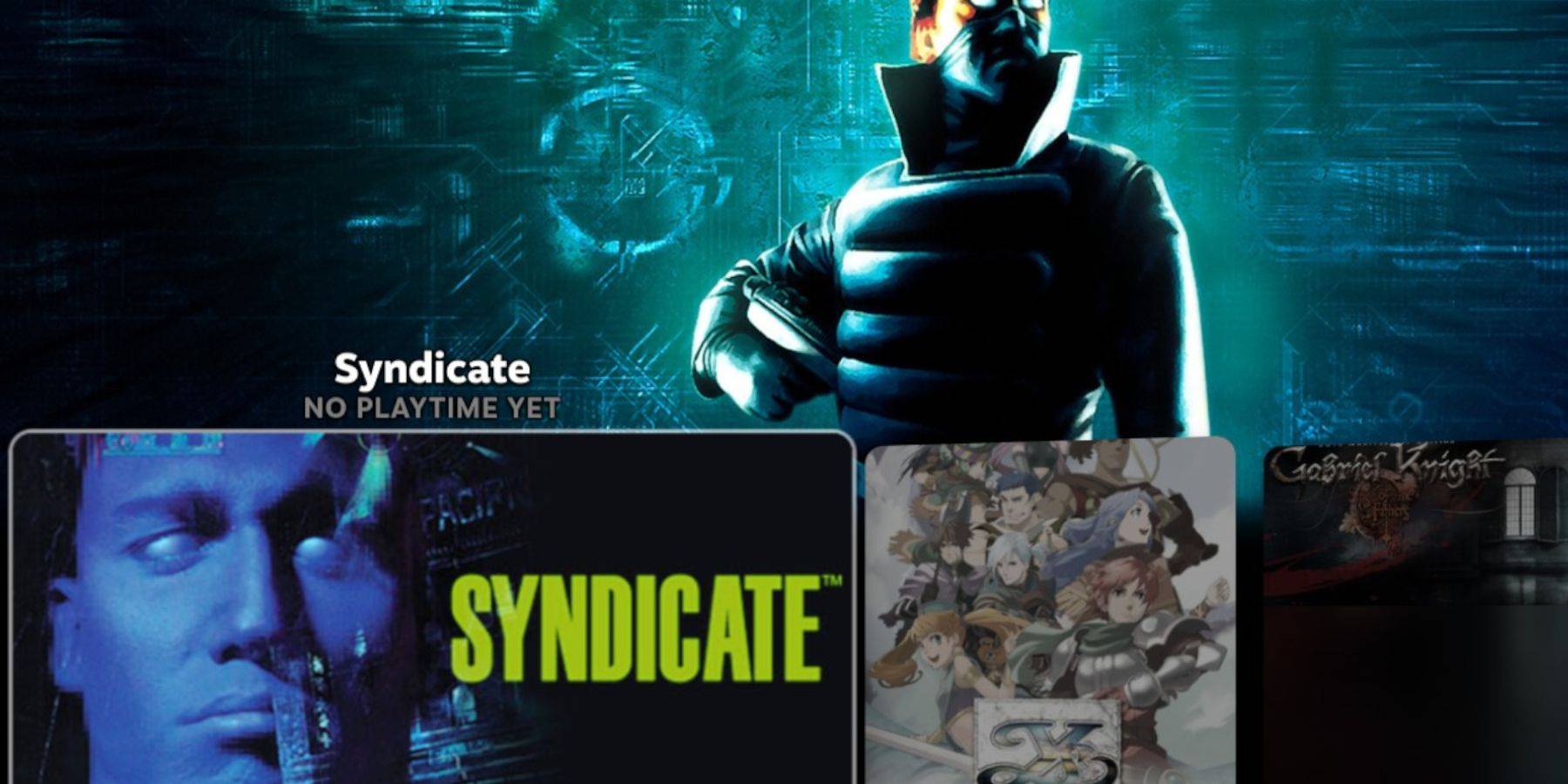
- Access your Steam Library.
- Go to the Collections tab.
- Open the Sega CD folder and launch your games.
Using Emulation Station:
Emulation Station (installed earlier) provides a better organized library. Launch it from your Non-Steam library. Use its scraper function to automatically download metadata and artwork.
Installing Decky Loader and Power Tools
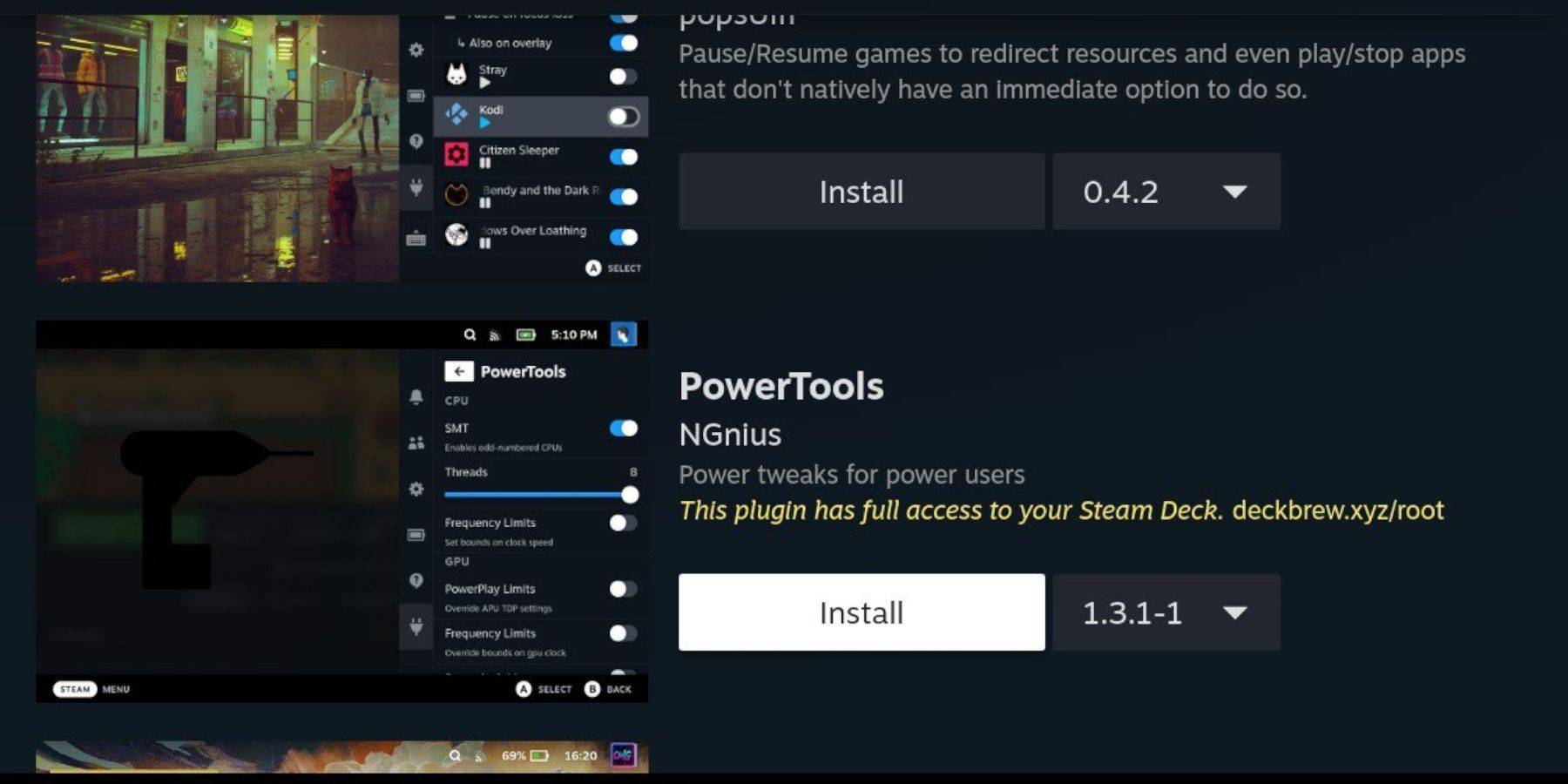
EmuDeck recommends Decky Loader for installing Power Tools to optimize performance.
Decky Loader Installation:
- Switch to Desktop Mode.
- Download Decky Loader from its GitHub page.
- Run the installer and choose "Recommended Install."
- Restart your Steam Deck in Gaming Mode.
Power Tools Installation and Optimization:
- Open Decky Loader from the Quick Access Menu (QAM).
- Go to the Decky Store and install Power Tools.
- Launch a Sega CD game.
- Open Power Tools (via QAM) and disable SMTs, set Threads to 4.
- Open the Performance menu (battery icon in QAM), enable Advanced View, turn on Manual GPU Clock Control, and set GPU Clock Frequency to 1200.
- Save these settings per game using "Per Game Profile."
Fixing Decky Loader After a Steam Deck Update
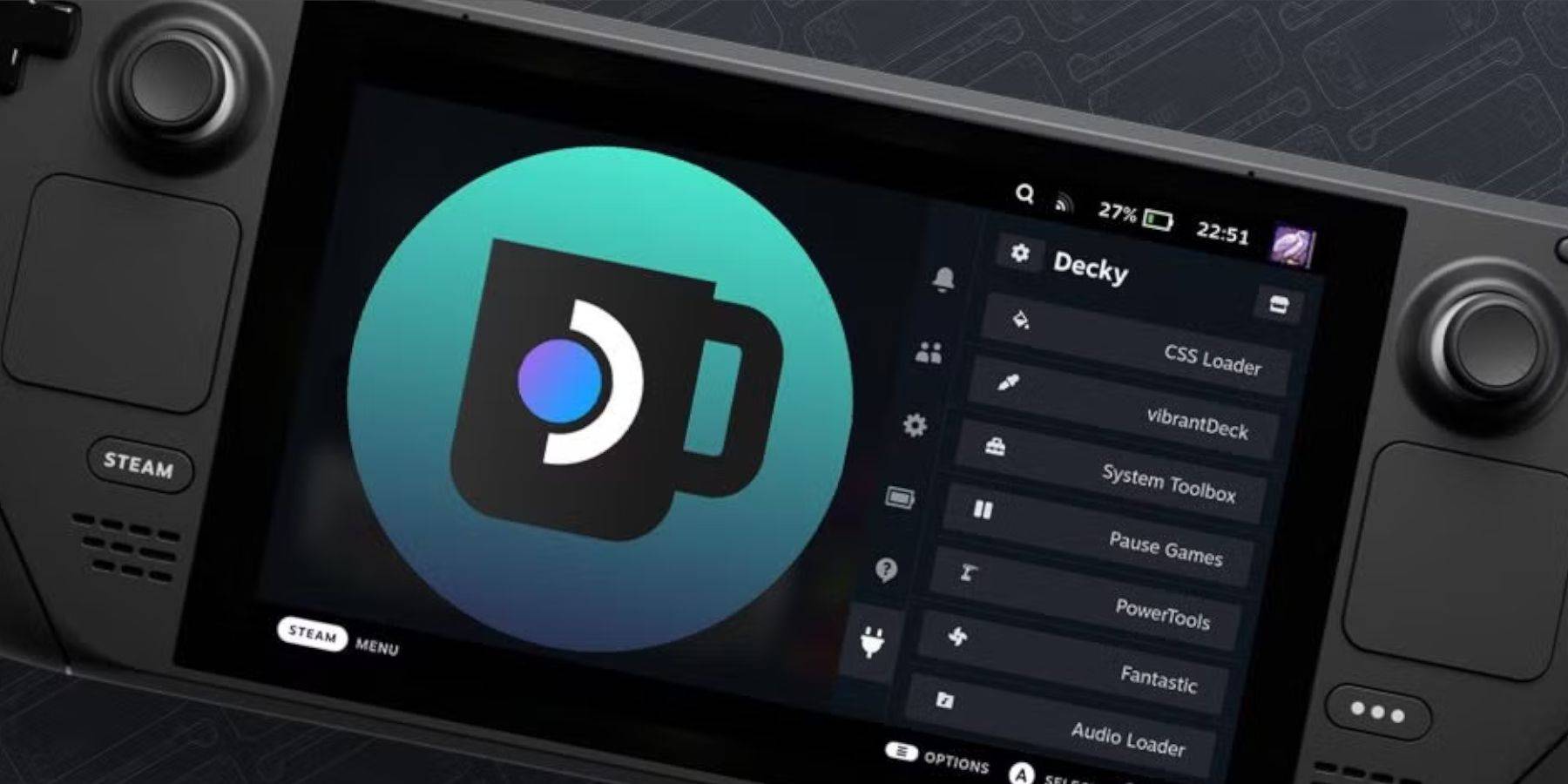 If Decky Loader is removed after a Steam Deck update:
- Switch to Desktop Mode.
- Re-download Decky Loader from its GitHub page.
- Run the installer using "Execute" (not "Open").
- Enter your sudo password (create one if needed).
- Restart your Steam Deck.
This comprehensive guide should allow you to successfully set up and enjoy your Sega CD games on your Steam Deck.